See what the whole room thinks in one word

Ask for a word or two and show the cloud live. Popular answers grow as they come in, so everyone sees what the room is thinking.

People join with a QR code. No app, no account.

How it works

  1. 1

    Ask for one word

    Short prompts get short answers.

  2. 2

    Answers grow as they repeat

    Popular words get bigger, live.

  3. 3

    Show it on the big screen

    Full screen in present mode.

A warm-up that fills the screen

Show the cloud in present mode. People scan the QR code, send a word, and watch their answers grow on the big screen.

  • Join by QR code or join code
  • The cloud grows live
  • Full screen on any projector
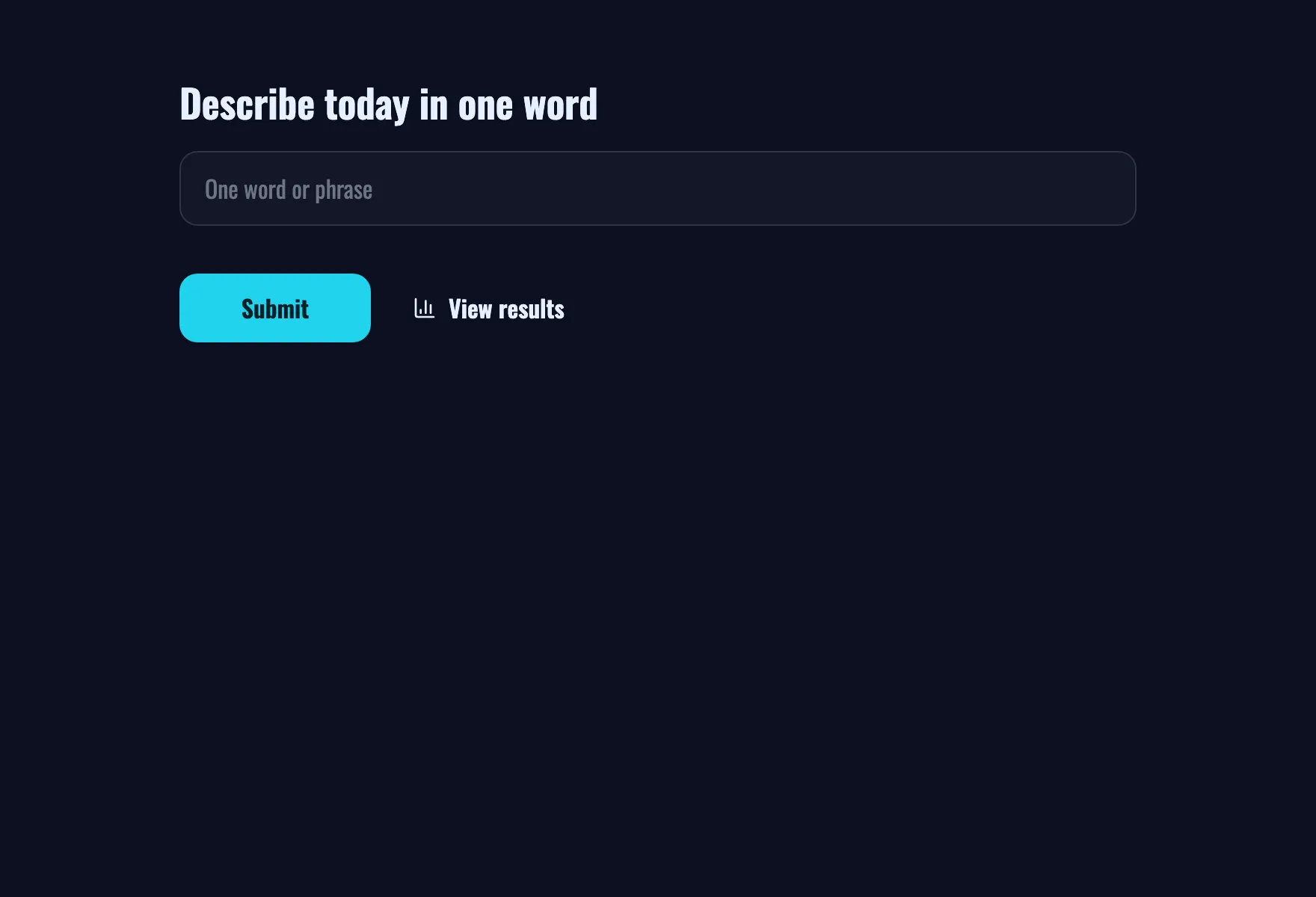
The Word cloud template asking for one word

From a cloud of ideas to a decision

The brainstorm template collects ideas as a word cloud, then asks everyone to rank the best ones. One link, and the group goes from open to decided.

  • Ideas first, ranking second
  • Several answers per person if you like
  • Results the group can see

What people take away

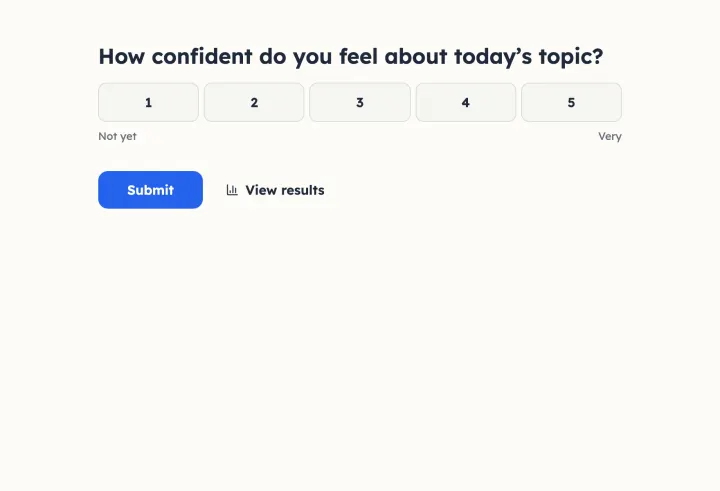
A one-word takeaway at the end of a session shows what landed. Pair it with a quick confidence scale, like the exit ticket does.

  • One word per person or several
  • Combine with other questions
  • Export every answer
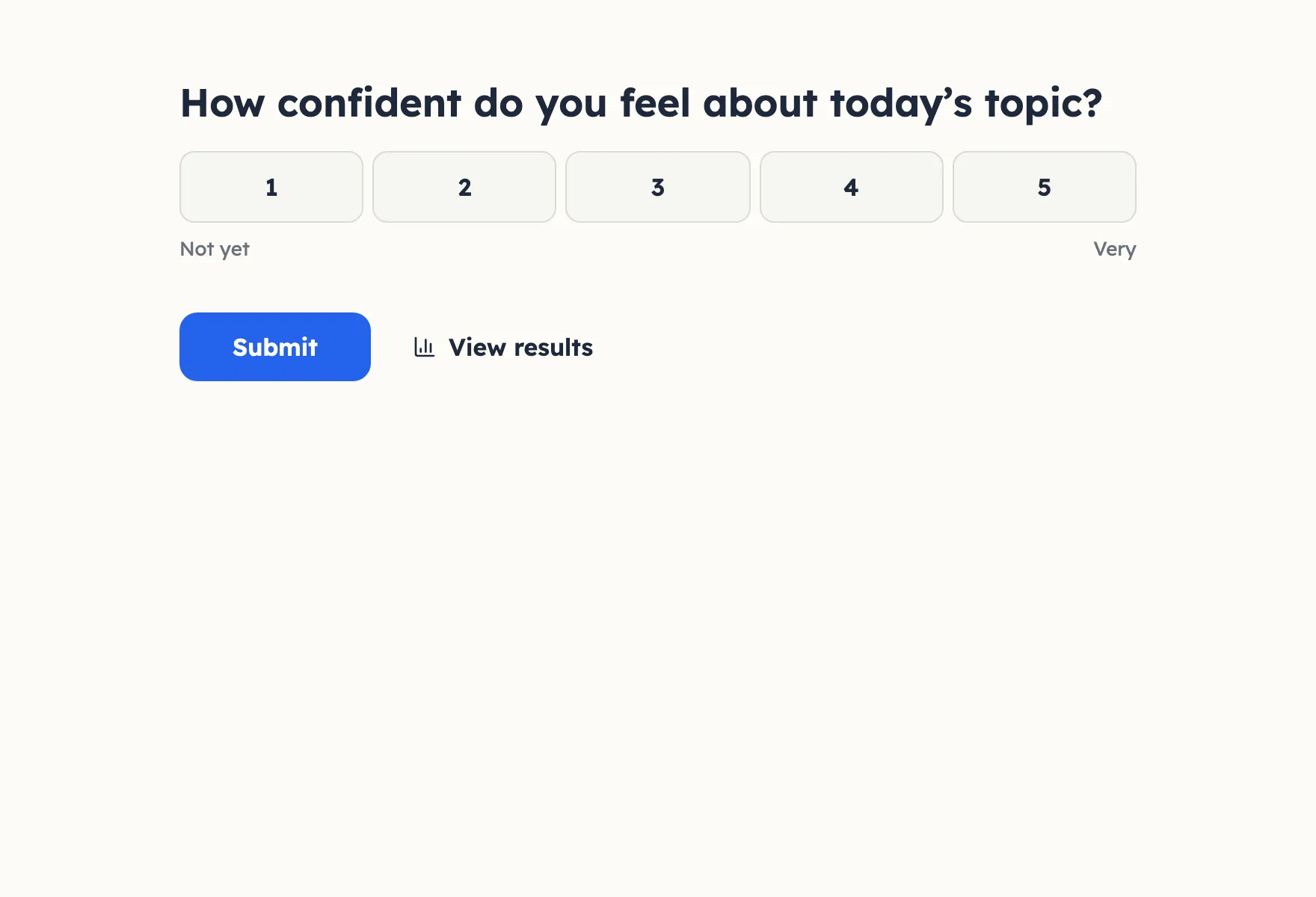
The Exit ticket template asking how confident people feel about today’s topic

Good to know

Live word clouds that get a room talking

How to write prompts that produce good clouds, set it up for one answer or many, and use the result to start a conversation.

2 min read

Prompts that make good clouds

A word cloud only works when answers repeat. Short prompts get short answers, and short answers repeat. Ask for “one word” explicitly.

  • Warm-ups: “How do you feel this Monday, in one word?”
  • Openers: “What comes to mind when you hear ‘remote work’?”
  • Takeaways: “Describe today’s session in one word.”
  • Naming: “What should we call the new project?”

Avoid questions that invite sentences, like “What could we do better?” Those belong in an open question.

One word each, or as many as they like

The Duplicate check decides it. Set it to Off to let people send several words, which suits brainstorming. Set it to Browser session for one answer per person, which keeps the cloud a fair picture of the room. Avoid IP address in a room on one Wi-Fi: only the first person could answer.

Words are grouped however people type them, so “Happy” and “happy” add up.

Show it live

  1. 1 Open the Results tab and click Present.
  2. 2 Press F for full screen. The QR code and join code sit beside the cloud.
  3. 3 Watch answers grow as they repeat. Press Q to hide the code once everyone is in.

In a video call, share the present mode tab in Zoom, Teams or Meet; people answer on their phones or laptops.

Turn the cloud into a conversation

The cloud is the start, not the end. Pick the biggest word and ask who sent it and why. Then look at a small one: the outliers are often the most interesting. For a brainstorm, follow up with a ranking of the best ideas, like the Brainstorm template does.
Questions people ask

Word clouds

Fill the screen with what the room thinks

Start a word cloud for your next session and show it live.

Word cloud 1 question · ~1 min