Three ways to use polls in a lesson
Most classroom polls fall into one of three jobs, and each wants a slightly different setup.
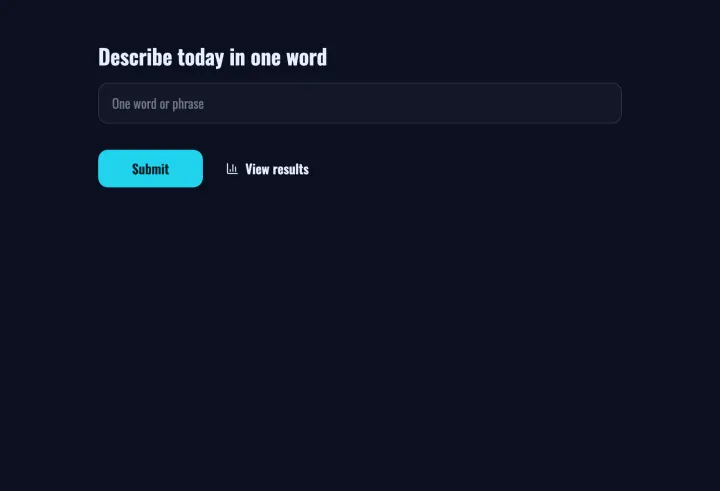
- Warm-ups open the lesson with a word cloud or a quick question. They wake the room up and show you what students already know. Results can be public, because there are no wrong answers.
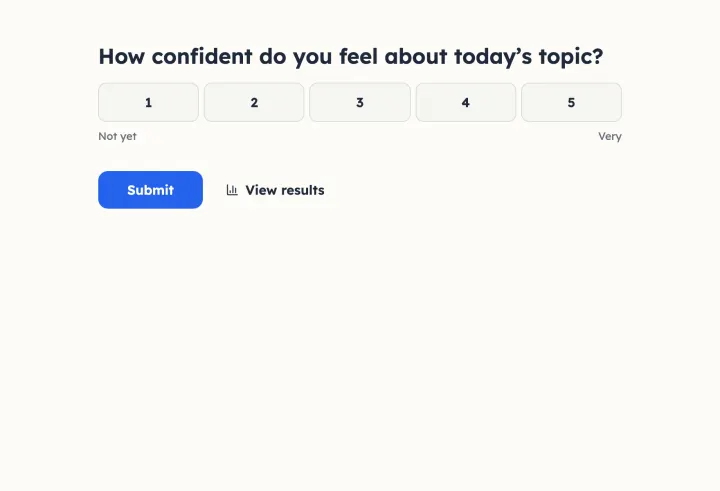
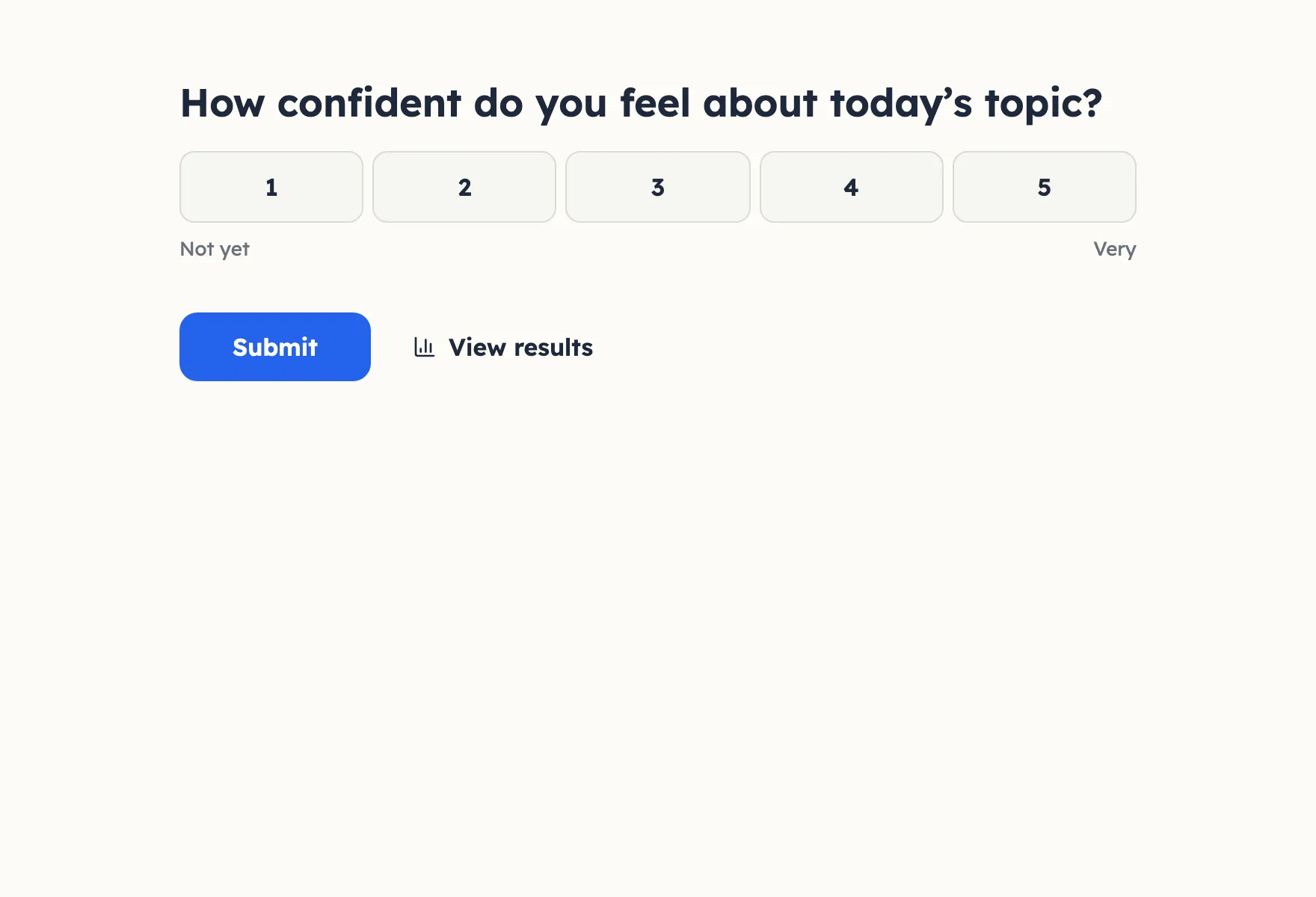
- Checks for understanding happen mid-lesson or at the end: a confidence scale, one multiple choice question, an exit ticket. Keep these anonymous and the results to yourself, so students answer honestly.
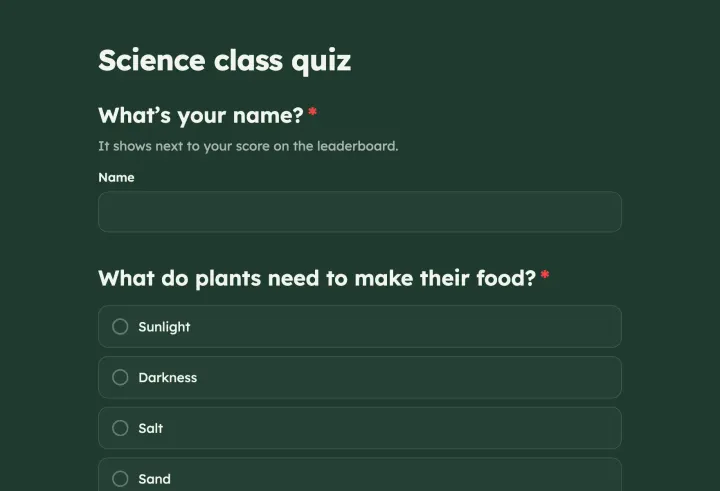
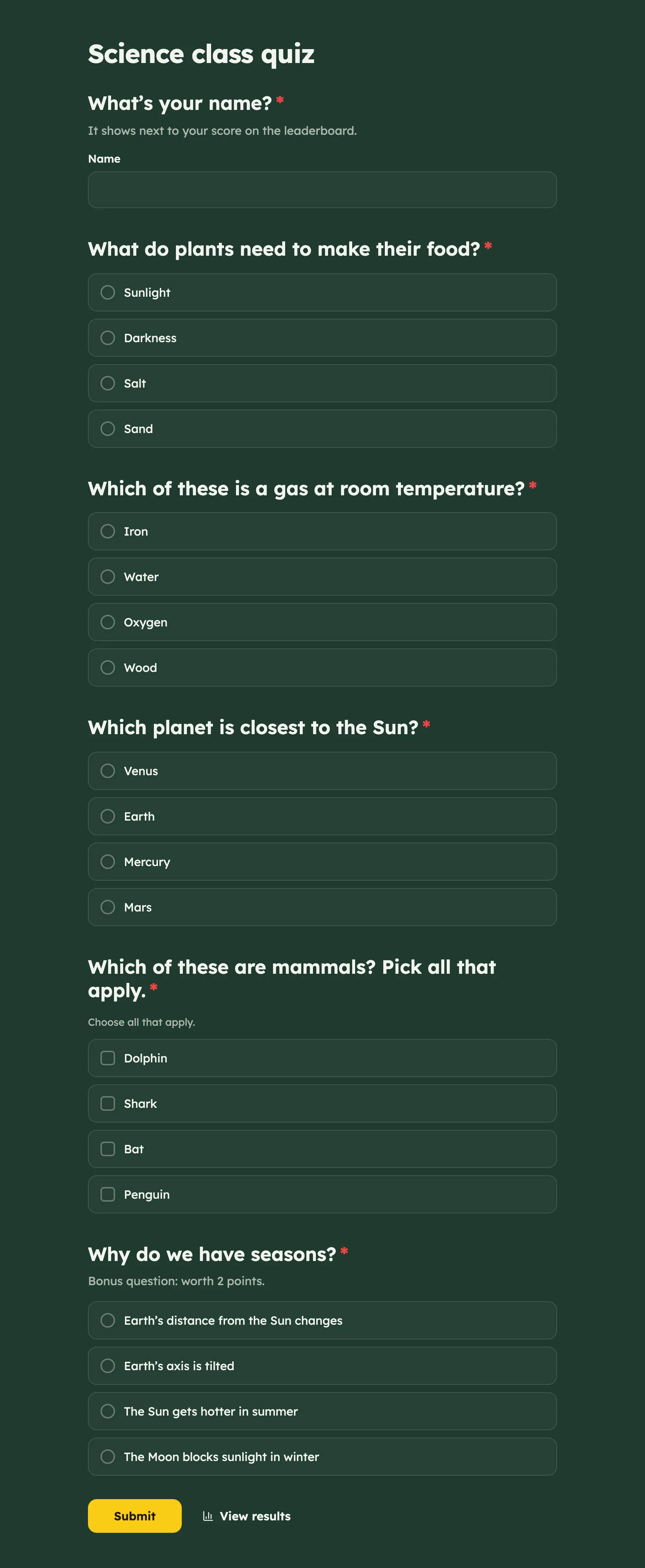
- Quizzes test what stuck. With quiz mode, StrawPoll marks the answers, scores each student and ranks them on a leaderboard.
Get the whole class in without a hitch
Students don’t need an account or an app. Open present mode on the projector: every question shows a QR code and a short join code beside it, so phones, tablets and laptops all get in within a few seconds.
The one setting to check first is the Duplicate check. New polls limit responses by IP address, and everyone on the school Wi-Fi shares one. With that setting, only the first student could vote. Switch it to Browser session for check-ins, or hand out unique codes when a quiz counts toward a grade and nobody should be able to answer twice.
An exit ticket that plans tomorrow’s lesson
An exit ticket takes two minutes at the end of class and tells you where to start next time.
- 1 Start from the Exit ticket template: a confidence scale and one open question about the takeaway.
- 2 Add “What’s still unclear?” and show it only to students who rate their confidence low, with conditional logic.
- 3 Set Access to results to Only you, so nobody compares answers.
- 4 Show the QR code while students pack up, and read the answers before you plan the next lesson.
Reuse the same ticket every lesson. Repeat voting lets students answer again after a set time, and every response keeps its timestamp, so you can see how confidence changes across a unit.
Quizzes that mark themselves
Turn on Quiz mode in the Settings tab and mark the correct options on each choice question. Each right answer is worth one point; set Points to 2 for a harder question or 0 for a warm-up that shouldn’t count.
Add a Contact info question and remove its email field, so students type only a name or nickname for the Leaderboard. Turn on Auto-jump to next page and add page breaks to show one question at a time, the way a quiz show does.
After the quiz, the results show how many students got each question right, like “71% answered correctly”. That’s the question to go over again.
Keep it fair and low-pressure
- Don’t ask for names on check-ins. Anonymous answers are honest answers.
- Use After the form closes for results when students might copy the majority.
- Leave Show which answers were right after submitting off if another class takes the same quiz later.
- Use an Audience Q&A at the end of a lesson to collect the questions students won’t ask out loud.