Bring the audience into the room

Put polls, word clouds and Q&A on screen at a conference, an all-hands or in class. People join with a QR code or a join code, and results update live.

Works on stage, in class and in Zoom, Teams or Meet.

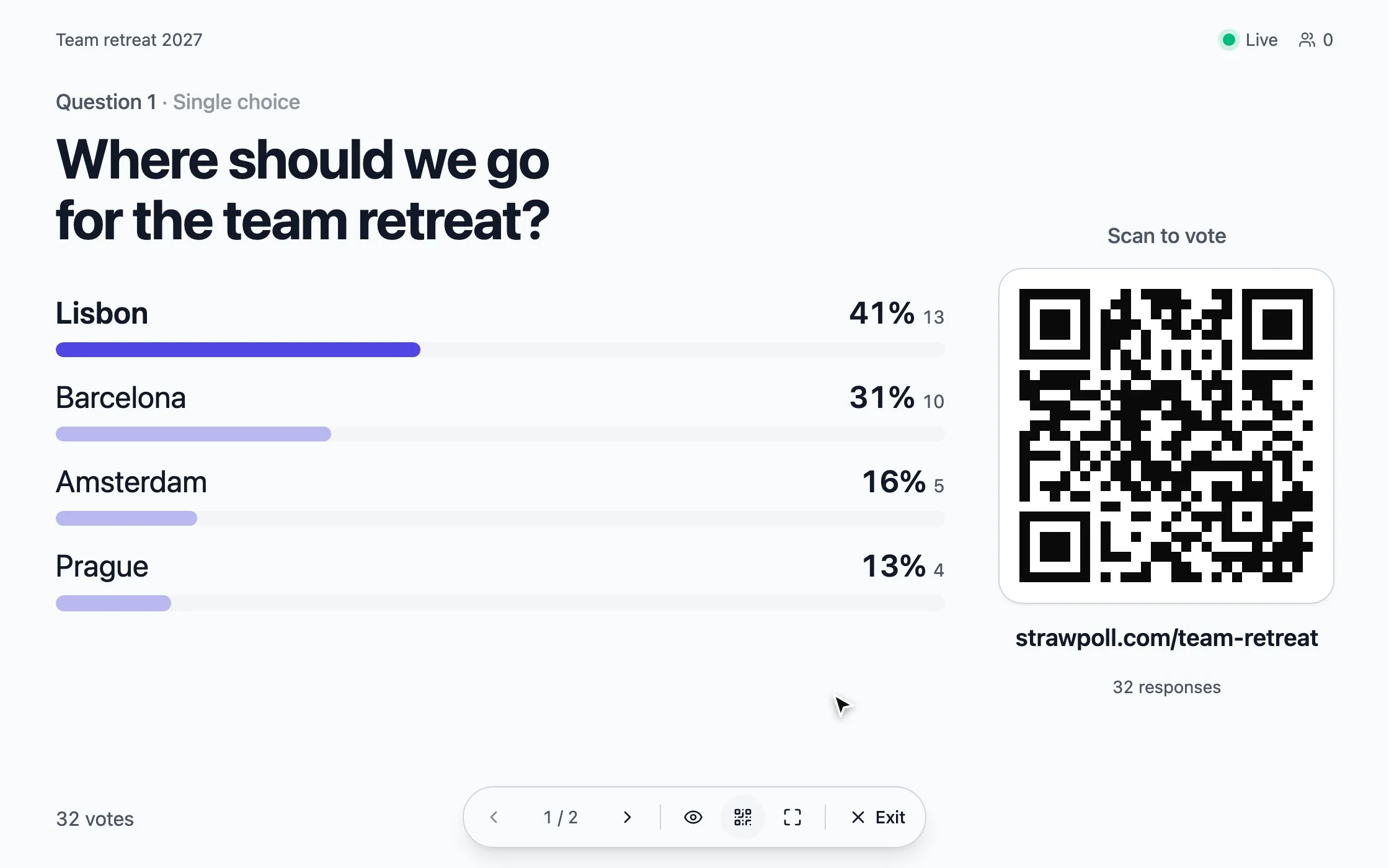
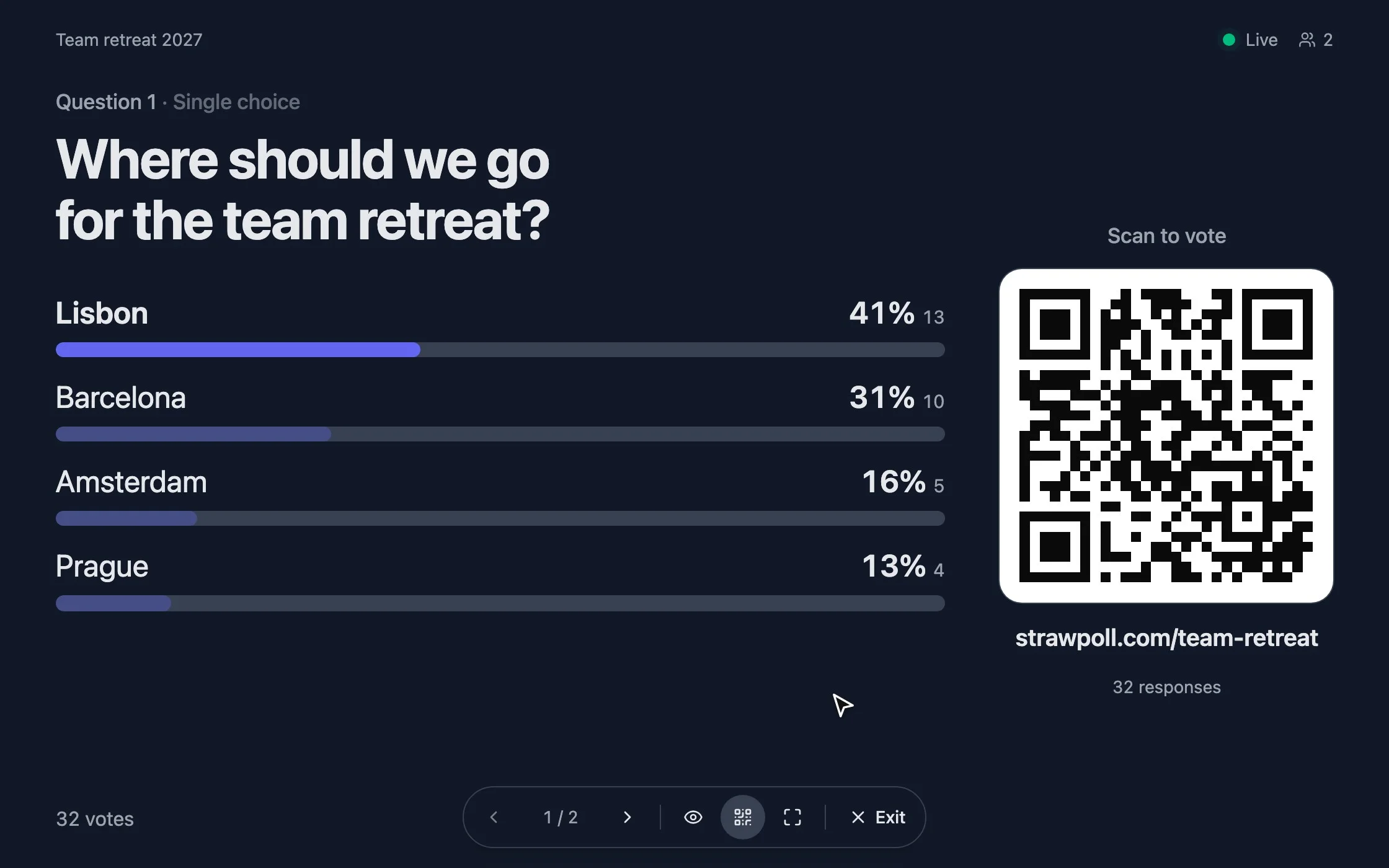
Present mode with a poll on the big screen and a QR code to join
One screen for the room. Everyone joins from their phone.

Hear from the whole room

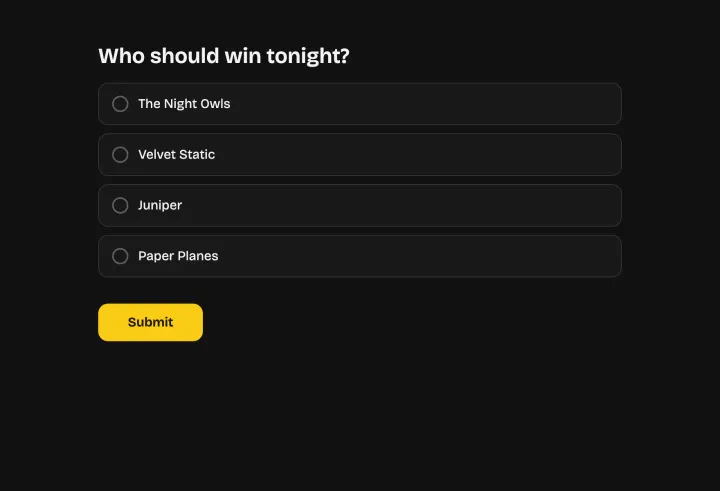
Open present mode on the shared screen or in your video call. People scan the QR code, and answers build up live.

  • QR code and join code on every slide
  • Works in Zoom, Teams and Meet
  • Results update without refreshing

Questions from the whole audience

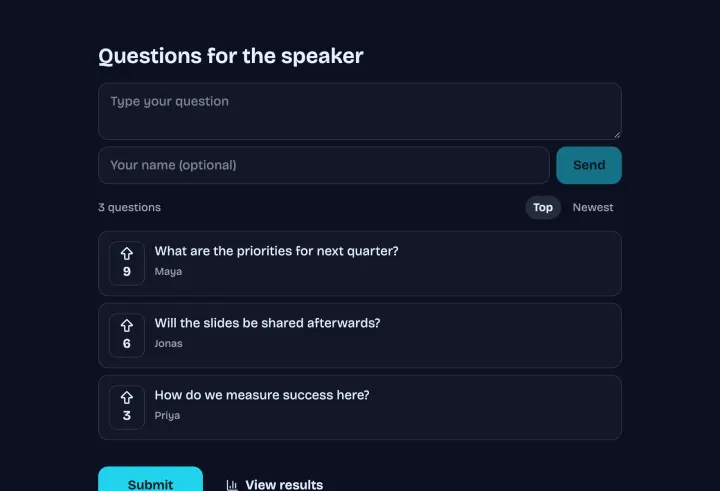
People send questions during the talk and upvote others. Approve them first if you like, then take them from the top.

  • Anonymous questions
  • Upvotes sort the list
  • Approve before they appear

From discussion to decision

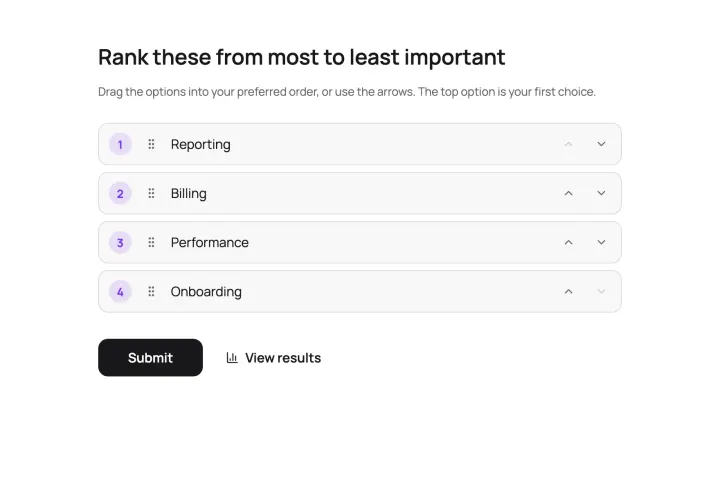
Sticky notes pile up and the loudest idea wins. A ranking on screen gives everyone the same voice, and you spend the session on what people disagree about.

  • Rankings, word clouds and quizzes
  • Hide results with one key
  • Move on with a presenter remote

Good to know

Audience interaction at live events

How to plan polls, word clouds and Q&A into a session, set up the room, run it from the stage and use the results afterwards.

2 min read

Plan interaction into the session

Interaction works best when it’s part of the agenda, not an add-on. A good pattern for a 45-minute session:

  • Opening: a word cloud or a light poll, so everyone joins in the first two minutes.
  • Middle: one or two polls that test or extend what you just said.
  • Throughout: an open Q&A people can use any time.
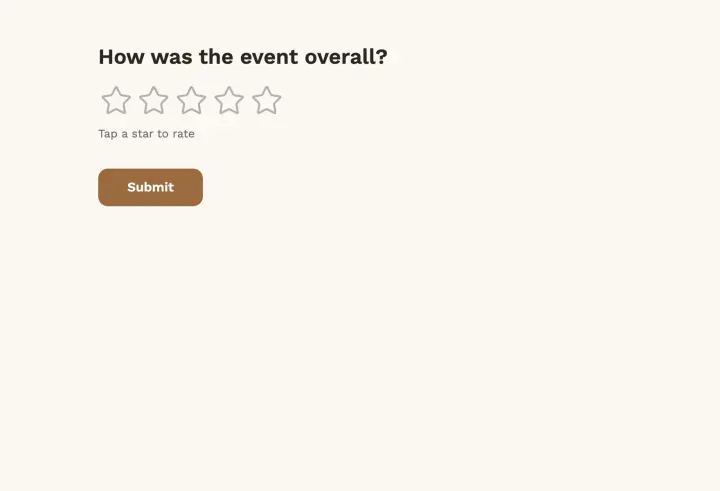
  • End: a quick rating or takeaway, while people are still in the room.

Put all of it in one poll. In present mode, each question gets its own slide.

Set up the room

  1. 1 Set Duplicate check to Browser session. With IP address, only the first person on the venue Wi-Fi could vote.
  2. 2 Open the Results tab, click Present and press F for full screen.
  3. 3 Scan the code with your own phone and check the screen from the back row.
  4. 4 Reset the poll after testing, so your answers don’t count.

Run it from the stage

  • →, Space or a presenter remote: next question.
  • H: hide results until everyone has answered, then reveal.
  • Q: hide the QR code once everyone is in.
  • C: switch the chart between bars, columns, a stacked bar, a donut or a pie.

The QR code and join code stay on every slide, so latecomers join at the question you’re on.

Hybrid and online

Present mode runs in a browser tab, so share it in Zoom, Teams or Google Meet. People in the room scan the code; people at home open the same link. Everyone ends up in the same results.

After the session

Export every response as a CSV, or share a link to the results with attendees. The questions from the Q&A you didn’t get to make a good follow-up email.
Questions people ask

Live events & meetings

Turn an audience into participants

Open your next session with a live poll, and keep the room with you until the last slide.

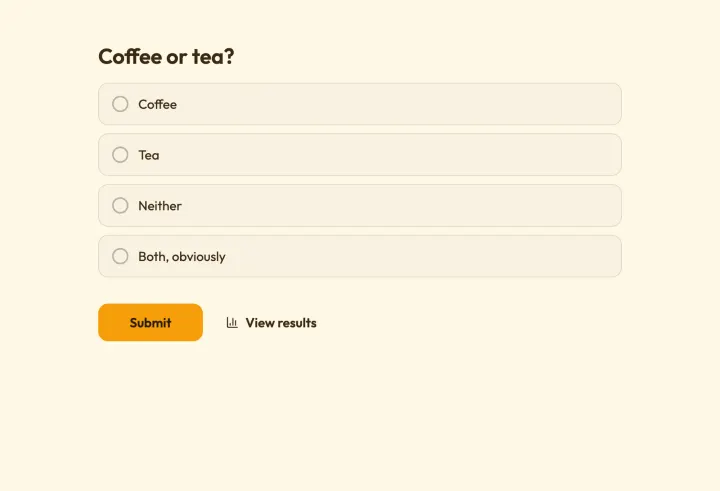
Icebreaker 2 questions · ~1 min