Who’s in for Saturday?
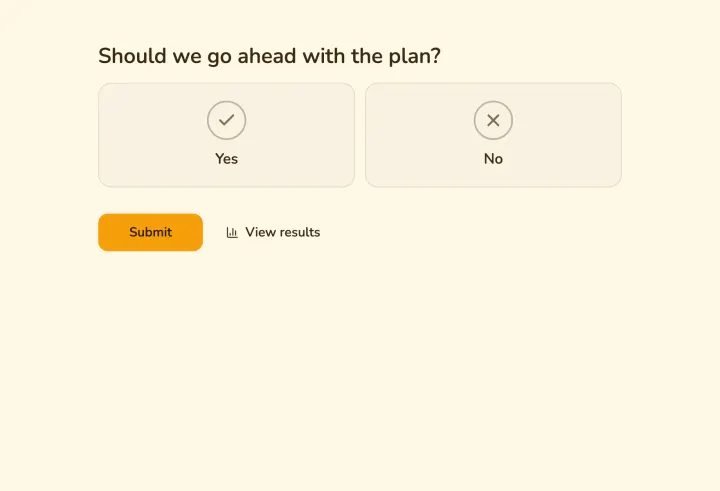
The fastest way to know your squad is one yes or no question in the team chat. Start from the Yes or no template, change the labels to “I’m in” and “Can’t make it”, and ask for the player’s name.
Choose whether names show next to the results for everyone or only for you. A public list helps players who are on the fence; a private one avoids awkward questions about who dropped out.
Turn on Allow changing responses, so a player who gets injured or sick updates their answer from the same link.
A training time the squad can make
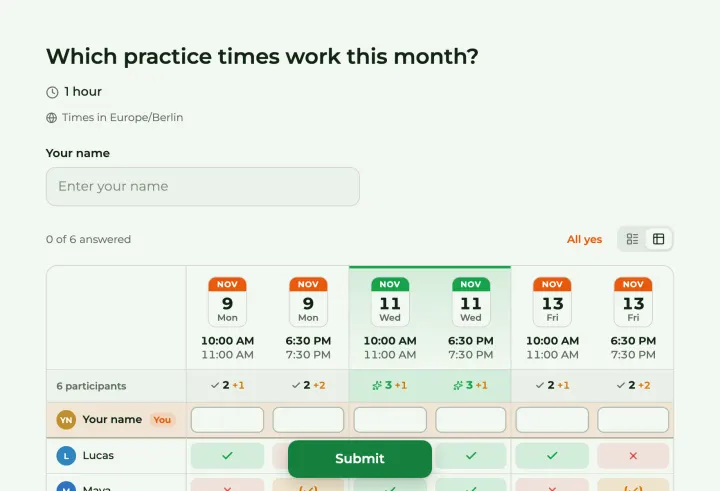
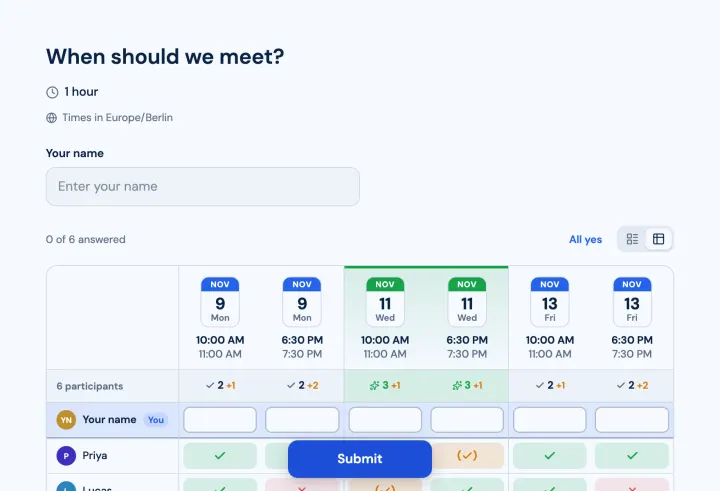
- 1 Start from the Practice schedule template and pick a few days with a start time each.
- 2 Turn on Allow "If need be": a player who can come but would rather not is worth knowing about.
- 3 Turn on Same time zone for everyone, since training is in person.
- 4 Turn on Highlight the best option, then choose Set as final time once enough players have answered.
Players add the final time to Google, Outlook or Apple Calendar in one click. If plans change, Clear and reopen voting collects new answers in the same poll.
Lifts, kit and snacks
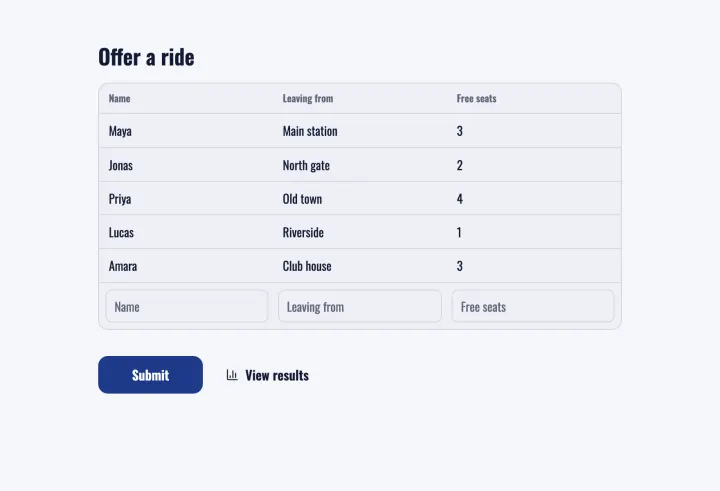
A carpool sheet asks drivers where they leave from and how many seats they have, and parents find a ride without phone calls. The same sign-up sheet works for washing the kit or bringing oranges at half time: everyone sees what’s already covered.
Younger players and parents
For junior teams, parents usually answer. Ask for the player’s name rather than the parent’s, and anyone with the link can answer for their child. No app, no account, any phone.
For a parent meeting or one-on-one feedback sessions, use a meeting poll with Only one option per person and Limit people per option, and it works like a booking sheet.
Votes the team enjoys
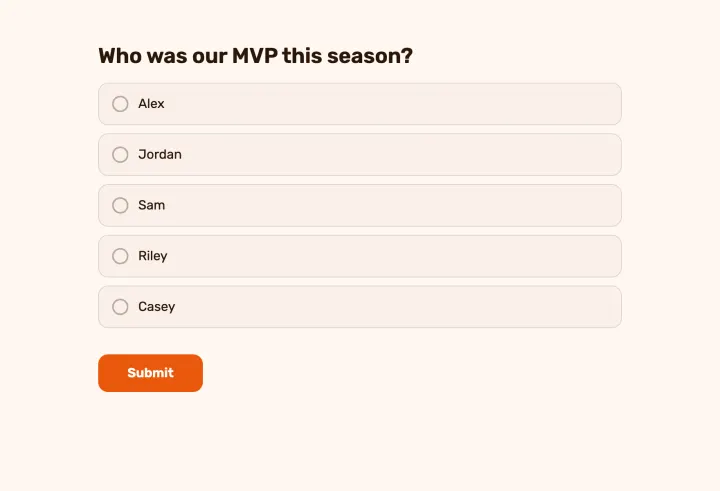
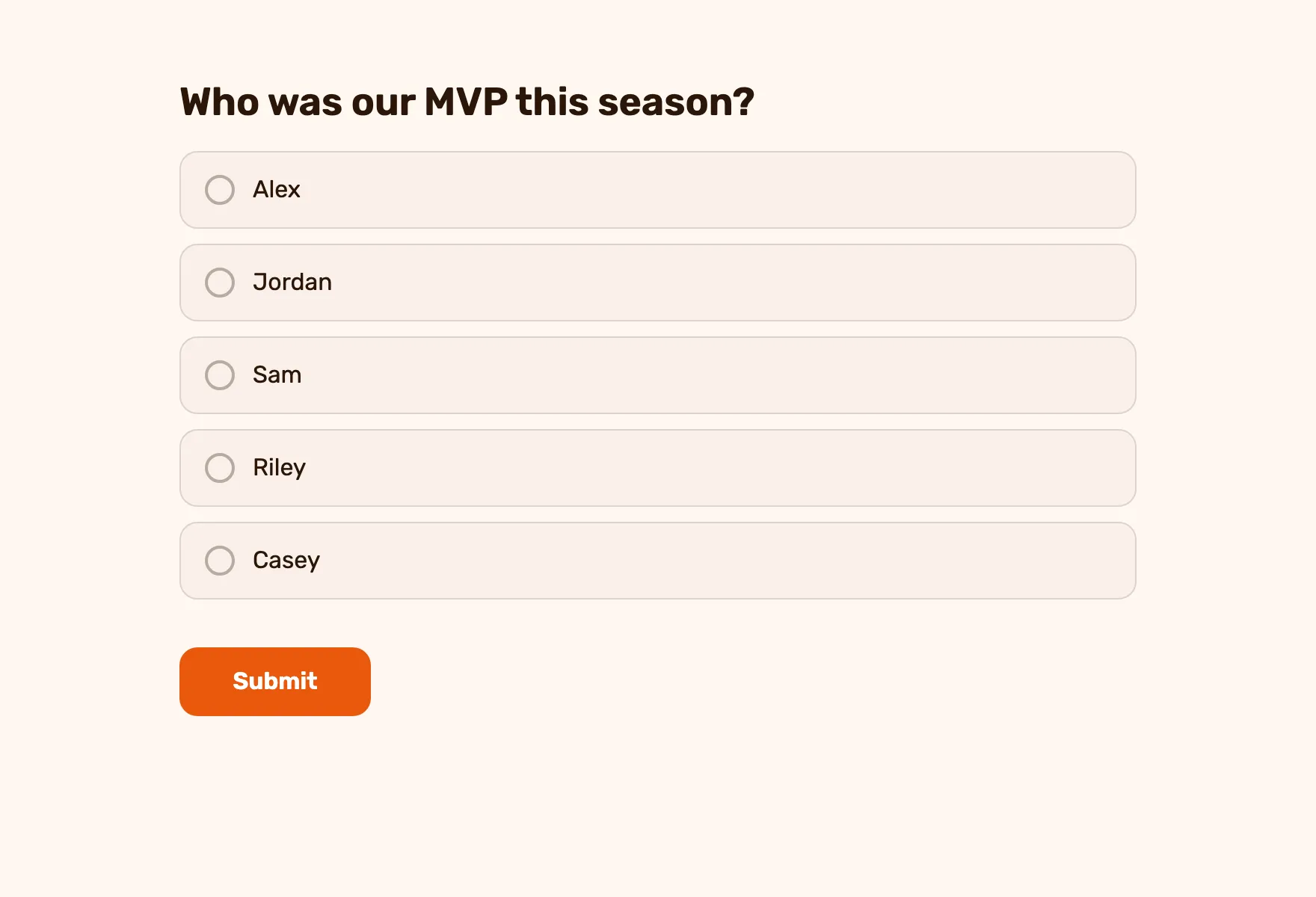
Let the team vote for the season’s MVP with the Team MVP template, keep the results hidden until it closes, and reveal them at the team dinner. Turn on comments so players can say why: those lines are often the best part of the speech.