Choice
Picture choice
Let people vote on images, like logos, designs or photos, and see which one wins.
Last updated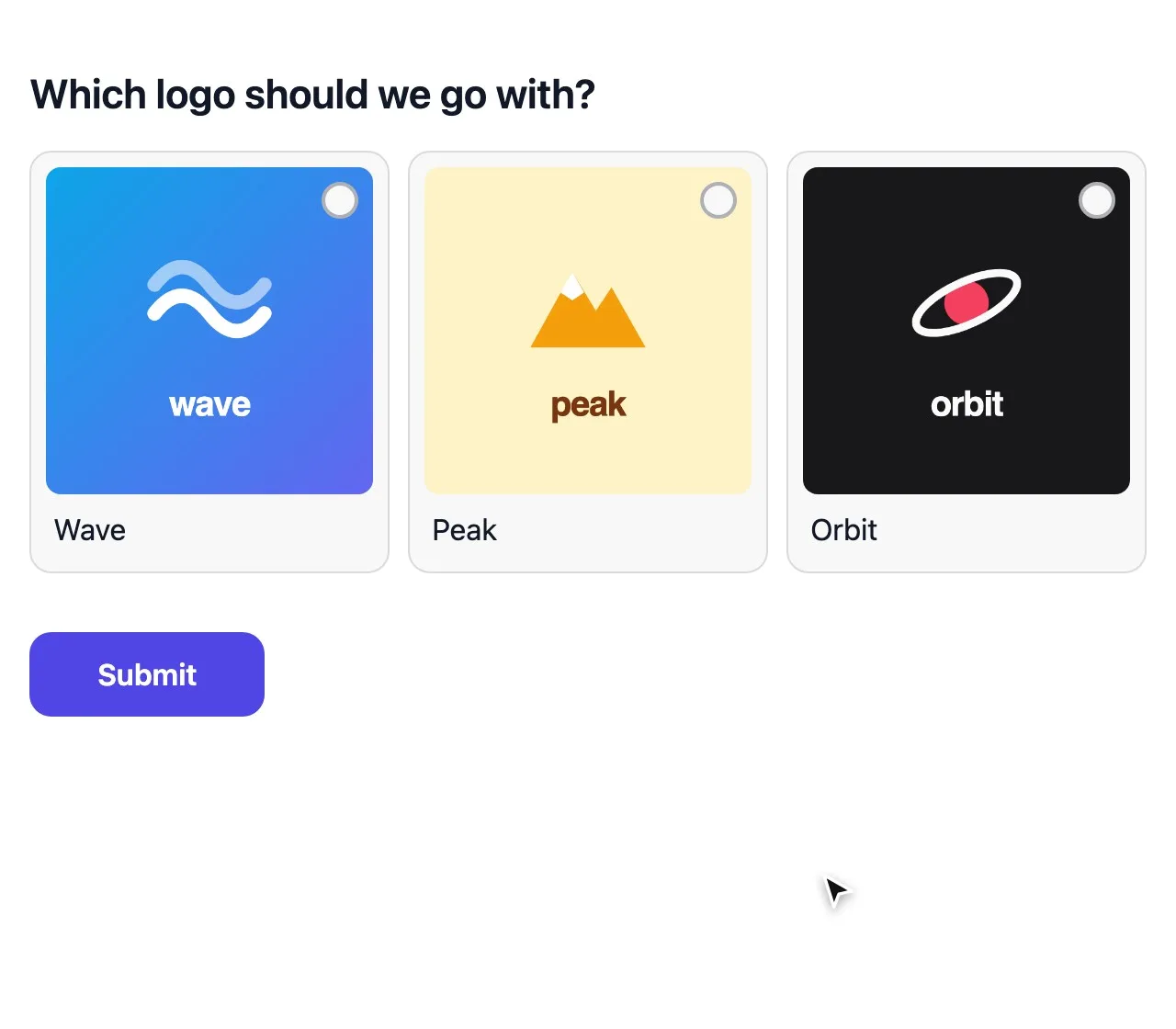
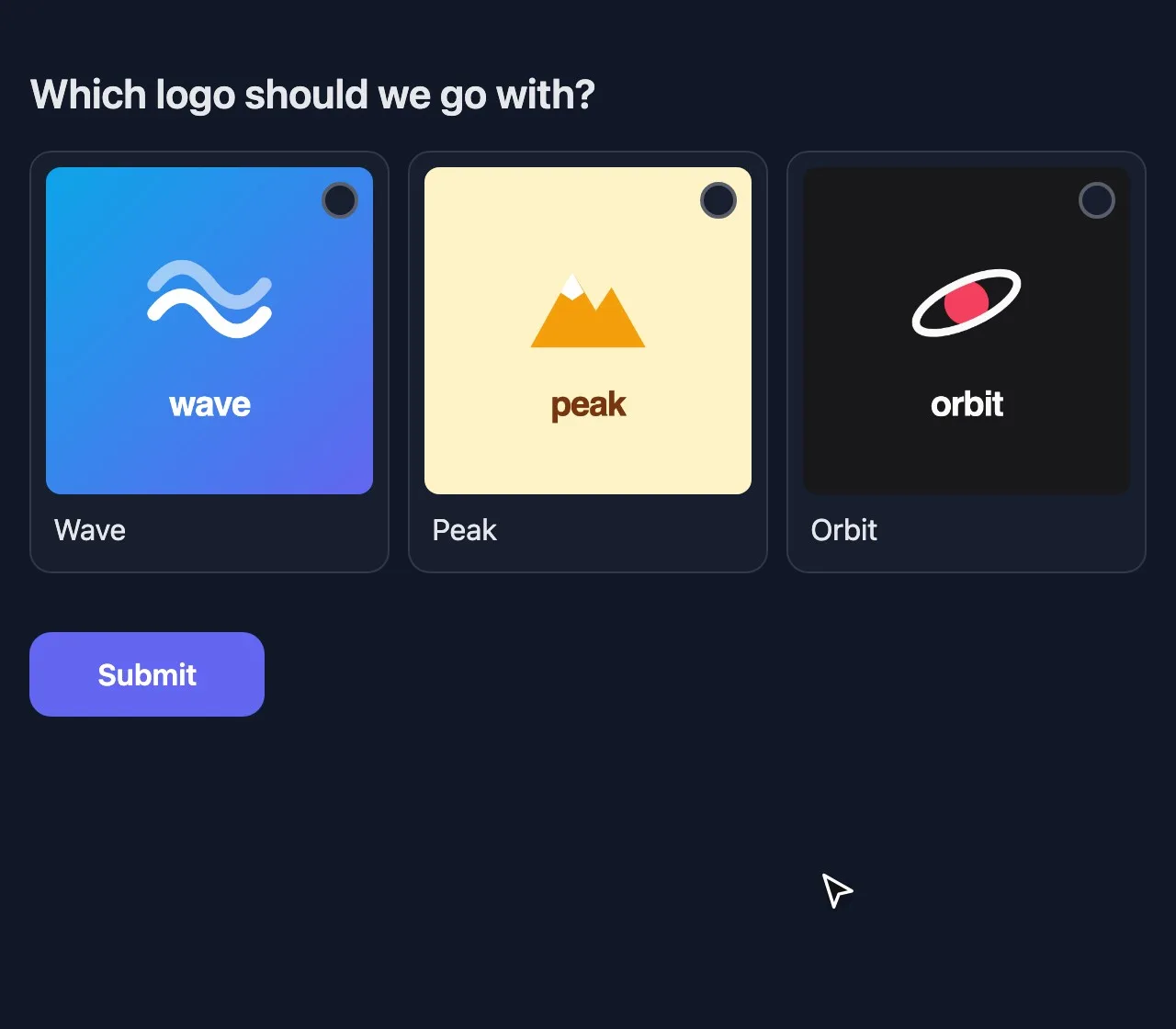
A picture choice question shows its options as images. People pick the one they like, or several if you allow it. It’s the easiest way to vote on something people have to see to judge.
When to use it
- Logo and design drafts: “Which logo should we use?”
- Photo contests: “Pick your favourite photo from the trip.”
- Food, outfits and venues: “Which cake should we order for the party?”
- Any choice where a label alone says too little.
For options that need no picture, use Multiple choice. It also has an “Other” answer and limits per option, which picture choice doesn’t.
Set it up
- In the editor, click Add content and choose Picture choice.
- Click Upload image on an option, or drag an image onto it. To upload several at once, use Add images: each image becomes an option. Images can be JPEG, PNG, GIF or WebP, up to 5 MB each.
- Give each image a label, and a Description (optional) when people need more context. Add option adds another one.
- Choose the settings next to the question.
Let voters pick several options
Turn this on when more than one image can win someone’s vote, like “Pick every photo you’d put in the calendar.” Each person still votes once, but can pick more than one image.
Use At least and At most to set how many. Set both to the same number for “pick exactly 3”. Leave At most empty for no limit.
Options layout
Choose how the images appear to voters:
- Grid, the default, shows image tiles side by side. Best for photos and designs people compare at a glance.
- List (large images) shows rows with a large image next to the label. Good when labels and descriptions matter as much as the picture.
- List (small images) shows rows with a small image next to the label, for longer lists.
Results
The results list the images from most to fewest votes, each with a thumbnail, so you see the winner at a glance.
See also All question types at a glance.