Scheduling & sign-ups
Meeting poll
Suggest dates and times, let everyone mark when they’re free and find the time most people can make.
Last updated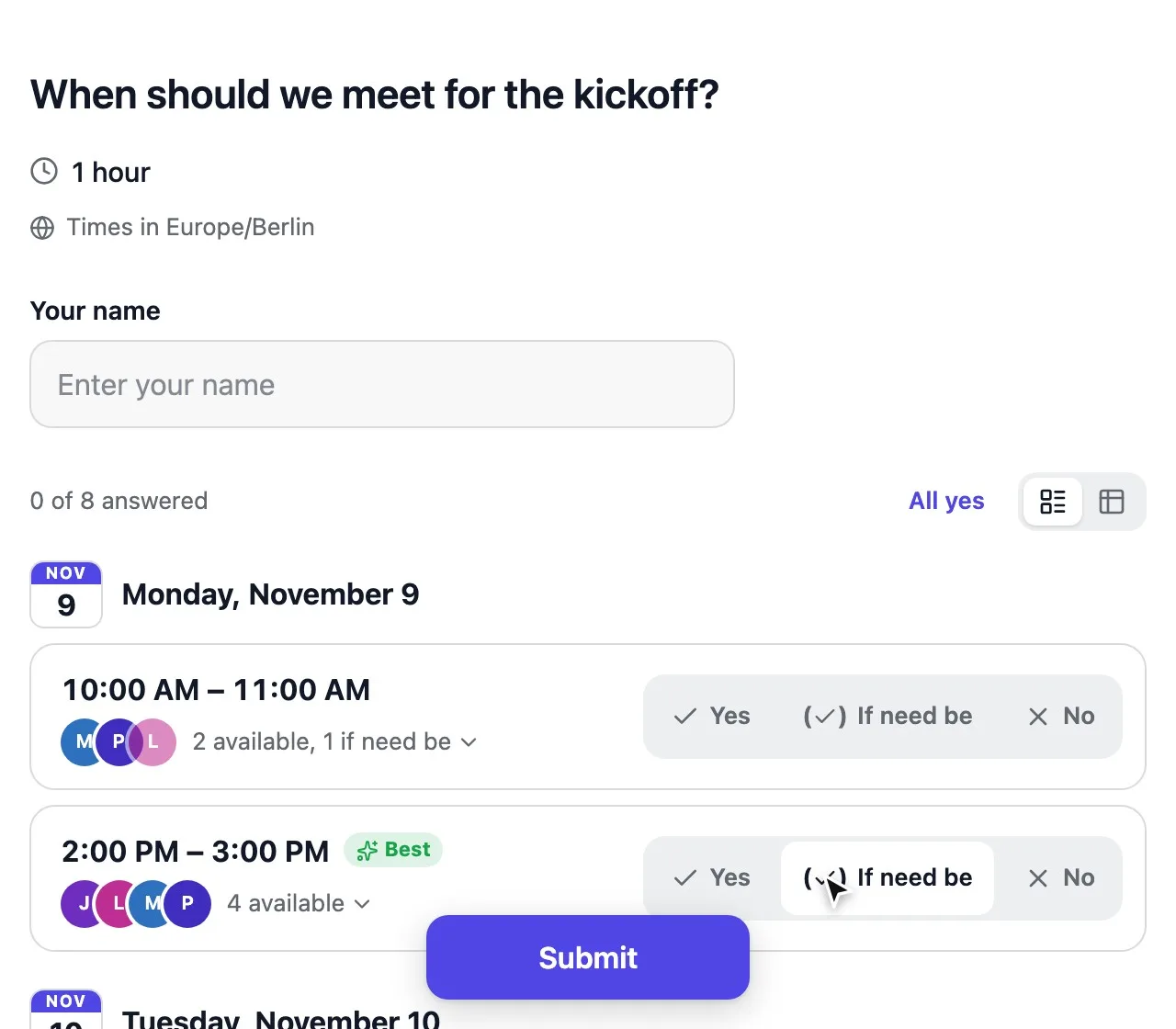
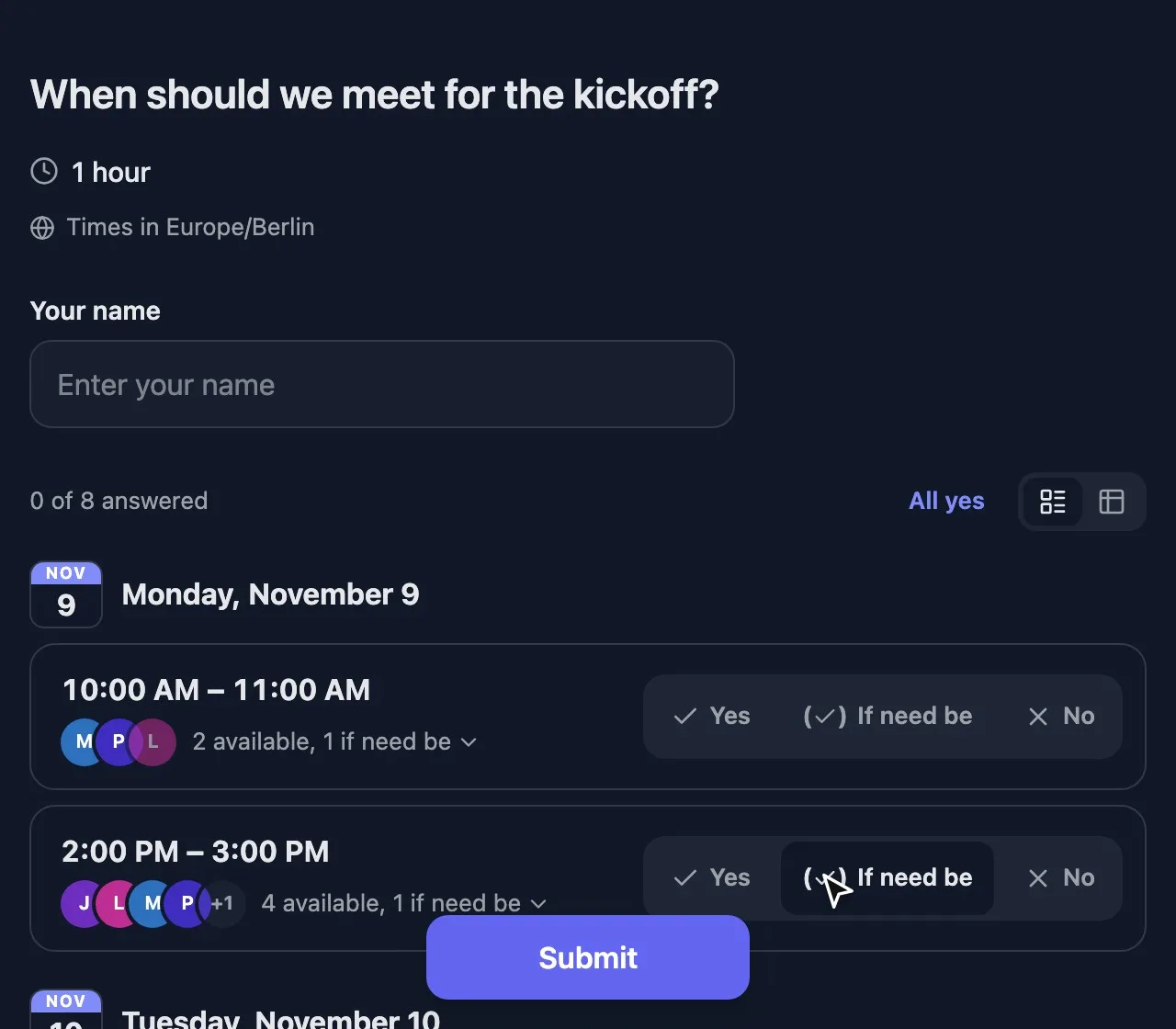
A meeting poll offers a few dates and times, and everyone marks the ones they can make. The best time shows at a glance, and time zones are handled for you.
When to use it
- Team meetings: “When can we do the quarterly review?”
- Dinners and get-togethers: “Which evening works for the reunion?”
- Calls across time zones: “When can we meet with the New York office?”
- Events that need most people there: “Which Saturday suits the club trip?”
To let each person book a time of their own, like for interviews or office hours, use Appointment booking. To ask for one date per person, like a birthday, use Date.
Set it up
- In the editor, click Add content and choose Meeting poll.
- Choose a Duration: All day, 15 minutes up to 2 hours, or Custom to give each time its own start and end.
- Pick the days that could work in the calendar. Drag or shift-click to pick several days at once.
- Add one or more start times to each day with Add a time. Use these times on every day copies a day’s times to all the others.
- Choose the settings next to the question.
A few tips:
- Offer fewer, better times. Three to eight options across one or two weeks usually find a time.
- Type the options instead. Edit as text takes one option per line:
2026-11-03for a whole day or2026-11-03 09:00-10:00for a time. - Create the times in your own zone. Everyone sees them in theirs.
Allow “If need be”
On by default. Adds a third answer for times that work but aren’t ideal, next to yes and no.
It helps you find a time: people mark more times as possible, and you see which ones everyone can make, even if not everyone loves them. Turn it off when you need a clear yes or no.
Allow additional votes
On by default. Lets someone who voted add votes for others, like family. Useful for family events or when one person answers for a group.
Highlight the best option
Off by default. Marks the time most people can make in the results, so everyone sees the winner at a glance.
Same time zone for everyone
Off by default, so each person sees the times in their own zone. That’s right for calls across time zones.
Turn it on for in-person meetings and choose the Time zone. Then everyone sees the times of the place where you meet, even when they vote from somewhere else.
Results
Who can make each time, with the yes and if need be answers counted for every option. Choose Set as final time on the best one, and everyone can add it to Google, Outlook or Apple Calendar in one click.
See also All question types at a glance and Schedule a meeting with a meeting poll.